
Title: Getting Started
This guide will walk you through setting up a basic ping-pong bot with Remora.Discord, showing you the basic concepts of the library. At the end of the tutorial, you should have the tools you need to start diving into more complex bots and use cases.
There'll be some assumptions made in this guide related to commands and terminal
environments - primarily, a system with bash is assumed, but the commands
should be easily transferable to any shell language.
Creating your project
First of all, ensure that you have version 6.0 of the .NET Core SDK installed. If you don't have it yet, you can follow the instructions on this page for your system.
Next up, we'll create a simple console program that'll serve as the host for our bot - you can do this in many different ways, but we'll stick to the terminal in this guide. Feel free to use your favourite IDE instead, such as JetBrains Rider or VS Code.
dotnet new console -n "PingPong"
cd PingPong
dotnet add package Remora.Discord
Opening up the Program.cs file, we can start to set up our environment.
Setting up a gateway client
Since we're writing a bot that's going to respond to a simple command, we need a
connection to Discord's realtime gateway. This is facilitated through the
DiscordGatewayClient class, as well as a bot account you'll need to create
with Discord themselves. From this account, you'll get a bot token, which the
gateway client will use to authenticate with the gateway.
For now, we'll do everything as top-level statements in our Program.cs file,
but as your bot grows, it's almost a certainty that you'll need to expand out to
more types, files, and namespaces. This guide also deliberately avoids more
integrated features, such as hosted services and generic app hosts - that said,
it is highly recommended that you build real bots around those technologies.
Check out the samples if you want to know more!
The first thing we'll do is create a CancellationTokenSource. This is going to
be our primary way of gracefully shutting down our bot, letting it notify the
Discord gateway that it's disconnecting, and allowing it to shut down any
Responders that are currently running (more on those later).
For simplicity's sake, we'll set up our program to respond to CTRL+C at the command line, and terminate the gateway client if it catches that keypress.
var cancellationSource = new CancellationTokenSource();
Console.CancelKeyPress += (sender, eventArgs) =>
{
    eventArgs.Cancel = true;
    cancellationSource.Cancel();
};
After this, we'll set up a service provider. Remora.Discord uses dependency injection throughout its codebase, and it's through these systems we register and access various types and services from the library.
var botToken = "YOUR_TOKEN_HERE";

var services = new ServiceCollection()
    .AddDiscordGateway(_ => botToken)
    .BuildServiceProvider();
A quick note here - do not place your bot token in the source code of your program when you write your real bot. It's a massive security risk, and is only done here for the sake of this guide. You should store your token outside of the program in some kind of database or file (appsettings, plaintext file, etc) that is not directly accessible from your source code.
With that out of the way, have a look at the snippet above. We register a set of
services from Remora.Discord via a convenience extension method called
AddDiscordGateway - this method adds everything you need to start using the
gateway client. It takes a single parameter, which is a function that returns
your bot token. In our case, that just references our local variable where we've
stored the token.
Since this guide will use the contents of a normal message in order to create a an example command (typically referred to as a traditional command), we also need to enable the "Message Content" intent (as in, intent to receive) on both Discord's end and in our bot's code.
Discord's preference is to avoid using the contents of messages where possible, and you should try to stick to these in real applications. For now, though, we're just familiarizing ourselves with the basics of the library, and using it is fine.
First, go to your bot's application page, select the "Bot" side panel, and scroll down. You should see an option named "Message content intent" with a switch - enable it.
Then, head back to your source code, and modify your service registration like this.
var services = new ServiceCollection()
    .AddDiscordGateway(_ => botToken)
    .Configure<DiscordGatewayClientOptions>(g => g.Intents |= GatewayIntents.MessageContents);
    .BuildServiceProvider();
Once that's done, we can continue.
To get a gateway client instance, we can then request it from the service provider we've created.
var gatewayClient = services.GetRequiredService<DiscordGatewayClient>();
Connecting to the gateway
At this point, the gateway client is fully functional, but has not connected to
the gateway yet. To do this, we call the RunAsync method, and pass in the
cancellation token from the source we created earlier.
var runResult = await gatewayClient.RunAsync(cancellationSource.Token);
Most things that deal with networking or external services have a fair chance to
fail, halt, or otherwise not complete perfectly. Remora.Discord is written to
try its damnedest to never let a potential runtime error bring down your
program, which means that any operation that could conceivably run into an issue
like that returns an IResult (or a type that implements that interface). This
is a safe and predictable wrapper around either a failed or a successful
operation - in the case of a failure, it'll contain a human-readable message
that should help you understand what went wrong.
In the case of RunAsync, this is a GatewayConnectionResult, which can
contain some additional information about what caused the gateway client to stop
running.
Let's implement some error handling next.
var log = services.GetRequiredService<ILogger<Program>>();

if (!runResult.IsSuccess)
{
    switch (runResult.Error)
    {
        case ExceptionError exe:
        {
            log.LogError
            (
                exe.Exception,
                "Exception during gateway connection: {ExceptionMessage}",
                exe.Message
            );

            break;
        }
        case GatewayWebSocketError:
        case GatewayDiscordError:
        {
            log.LogError("Gateway error: {Message}", runResult.Error.Message);
            break;
        }
        default:
        {
            log.LogError("Unknown error: {Message}", runResult.Error.Message);
            break;
        }
    }
}

Console.WriteLine("Bye bye");
Under normal circumstances, the gateway client will gracefully handle errors and
try to keep you connected to the gateway (either by reconnecting and resuming,
or by creating a new session) until you ask it to turn off via the cancellation
token provided to RunAsync. If runResult isn't successful, you can be fairly
certain something outside of normal operation has happened - either it's a
programming error on the part of the library, or something that's made the
gateway unable or unwilling to continue trying to connect to the gateway. In
general, if the error is recoverable, Remora.Discord will try to fulfill your
requests until it can no longer justify any further efforts (often, this means
some sort of timeout or max number of retries).
At this point, you should be able to run the program and see your bot come
online in Discord. Hooray! If you want to see an overview of what the gateway
client is doing, you can configure a logging provider in the service provider -
AddConsole from Microsoft.Extensions.Logging.Console is usually a good
choice for simple projects. Adding logging will produce some output similar to
the following.
info: Remora.Discord.Gateway.DiscordGatewayClient[0]
      Retrieving gateway endpoint...
info: Remora.Discord.Gateway.DiscordGatewayClient[0]
      Connecting to the gateway...
info: Remora.Discord.Gateway.DiscordGatewayClient[0]
      Creating a new session...
info: Remora.Discord.Gateway.DiscordGatewayClient[0]
      Connected.
Creating a Responder
Now, in its current state, our bot doesn't do much of anything. Sure, it runs
and connects, but that's no fun! Let's add a simple Responder that can - as
the name suggests - respond to events from Discord's gateway.
Responders are defined as any class that implements one or more IResponder<T>
interfaces, where T is an event from the Discord gateway. If the gateway
client gets an event that one or more responders are interested it, it will
instantiate them and dispatch it to the responders, letting them handle it on
their own.
A responder can take as little or as much time as it needs to handle an event without affecting the gateway - they're entirely separate systems, save for the fact that they also share the cancellation token with the gateway client.
Let's create our responder now.
public class PingPongResponder : IResponder<IMessageCreate>
{
}
This responder will only respond to IMessageCreate events from the gateway -
that is, events that contain information about a message someone has posted, be
they user or bot. You can implement as many IResponder<T> interfaces as you
like, and the responder will react to them all.
One thing to note is that a responder is not persistent - that is, it is not the
same instance that responds to the events, even events of the same type. The
responder is what's called a Scoped service in DI parlance, and each event
from the gateway carries its own scope. This means that if you want to retain
information between events, you'll need to outsource that to some other type -
most likely registered as a Singleton, or Scoped in an outer scope.
The IResponder<T> interface is relatively simple, only defining a single
method.
public async Task<Result> RespondAsync
(
    IMessageCreate gatewayEvent,
    CancellationToken ct = default
)
{
}
Here, we can see the event coming in, and a type that implements IResult
rearing its head again. Responders, much like any user-facing operation, can
fail! Maybe it can't find some resource it needs, or maybe something couldn't be
parsed properly - anything that results in the responder being unable to finish
its task should result in a failed result being returned.
We can also see that the cancellation token from earlier is available to us -
this is the same token that we passed to RunAsync, and we should respect it.
If cancellation has been requested, we should bail out with a failed result as
soon as we can.
Adding a command
Now, our command will be very simple, and won't really be much more than a direct match against the message contents, but it gets the point across. In the future, we'll have a proper command framework available, but that's outside of the scope of this quickstart.
if (gatewayEvent.Content != "!ping")
{
    return Result.FromSuccess();
}

var embed = new Embed(Description: "Pong!", Colour: Color.LawnGreen);
If the message isn't something we're interested in, we return a successful
result - after all, if we just don't care, it's hardly a failure of our own
code. If the message does match, however, we'd like to send an embed back to the
user with a pong to show that we got their ping. new'ing up an embed is simple
enough, but we need to send it back to the user in the same channel, too.
This is done through Discord's REST API, which we also have access to. This, however, we need to explicitly request through - you guessed it - dependency injection. Let's jump out of the response method for a moment, and implement a constructor that takes the API we're interested in.
private readonly IDiscordRestChannelAPI _channelAPI;

public PingPongResponder(IDiscordRestChannelAPI channelAPI)
{
    _channelAPI = channelAPI;
}
Every section of Discord's REST API is available in this form, as an interface defining the various endpoints. Back in our responder method, we can now use the channel API.
if (gatewayEvent.Content != "!ping")
{
    return Result.FromSuccess();
}

var embed = new Embed(Description: "Pong!", Colour: Color.LawnGreen);
return (Result)await _channelAPI.CreateMessageAsync
(
    gatewayEvent.ChannelID,
    embeds: new[] { embed },
    ct: ct
);
The CreateMessageAsync method takes a lot of various parameters, but we're
really only interested in the embed and channel parameters right now -
therefore, we can skip over the other optional parameters and just pass in the
ones we care about.
Adding the responder to the gateway client
With that done, our responder is implemented and ready to go! There's only one final thing to do before we can run our bot and see it in action - we need to make it available to the gateway client via - say it with me - dependency injection!
Back in our Main method, where we configure our services, we'll make a small
addition.
var services = new ServiceCollection()
    .AddDiscordGateway(_ => botToken)
    .AddResponder<PingPongResponder>()
    .BuildServiceProvider();
And that's it! The AddResponder<T> method registers the responder as a scoped
service for all of the IResponder<T> interfaces it implements.
Example program
Putting everything together, your program should now look something like this.
using System;
using System.Drawing;
using System.Threading;
using System.Threading.Tasks;
using Microsoft.Extensions.DependencyInjection;
using Microsoft.Extensions.Logging;
using Remora.Discord.API.Abstractions.Gateway.Events;
using Remora.Discord.API.Abstractions.Rest;
using Remora.Discord.API.Objects;
using Remora.Discord.Gateway;
using Remora.Discord.Gateway.Extensions;
using Remora.Discord.Gateway.Responders;
using Remora.Discord.Gateway.Results;
using Remora.Results;

namespace Remora.Discord.Docs.Custom.Guides.Getting_Started;

var cancellationSource = new CancellationTokenSource();
Console.CancelKeyPress += (sender, eventArgs) =>
{
    eventArgs.Cancel = true;
    cancellationSource.Cancel();
};

var botToken = "YOUR_TOKEN_HERE";
// Do not place your bot token in the source code of your program
// when you write your real bot. It's a massive security risk,
// and is only done here for the sake of this guide. You should store
// your token outside of the program in some kind of database or file
// (appsettings, plaintext file, etc) that is not directly accessible
// from your source code.

var services = new ServiceCollection()
    .AddDiscordGateway(_ => botToken)
    .AddResponder<PingPongResponder>()
    .BuildServiceProvider();

var gatewayClient = services.GetRequiredService<DiscordGatewayClient>();
var log = services.GetRequiredService<ILogger<Program>>();

var runResult = await gatewayClient.RunAsync(cancellationSource.Token);

if (!runResult.IsSuccess)
{
    switch (runResult.Error)
    {
        case ExceptionError exe:
        {
            log.LogError
            (
                exe.Exception,
                "Exception during gateway connection: {ExceptionMessage}",
                exe.Message
            );

            break;
        }
        case GatewayWebSocketError:
        case GatewayDiscordError:
        {
            log.LogError("Gateway error: {Message}", runResult.Error.Message);
            break;
        }
        default:
        {
            log.LogError("Unknown error: {Message}", runResult.Error.Message);
            break;
        }
    }
}

Console.WriteLine("Bye bye");

public class PingPongResponder : IResponder<IMessageCreate>
{
    private readonly IDiscordRestChannelAPI _channelAPI;

    public PingPongResponder(IDiscordRestChannelAPI channelAPI)
    {
        _channelAPI = channelAPI;
    }

    public async Task<Result> RespondAsync
    (
        IMessageCreate gatewayEvent,
        CancellationToken ct = default
    )
    {
        if (gatewayEvent.Content != "!ping")
        {
            return Result.FromSuccess();
        }

        var embed = new Embed(Description: "Pong!", Colour: Color.LawnGreen);
        return (Result)await _channelAPI.CreateMessageAsync
        (
            gatewayEvent.ChannelID,
            embeds: new[] { embed },
            ct: ct
        );
    }
}
Conclusion
Now, running your bot, going into Discord, and running your command should net you the following.
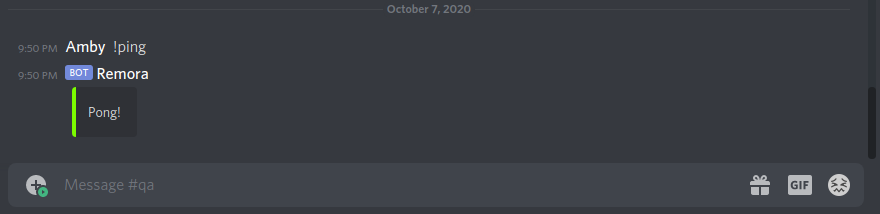
Congratulations! You've written your first bot using Remora.Discord, and familiarized yourself with the basic concepts of the library. Hopefully, this should set you on the right path, and give you the tools you need to create great bots with the library.
If you're interested in looking at some bots authored by the community or by the library author(s), have a look at the samples in the repository. If you have any questions, please don't hesitate to ask, or open an issue in the main repo.
Good luck!